The Camera Settings
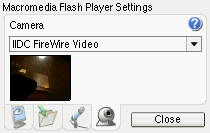
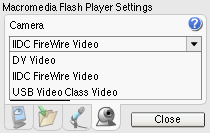

Above are three screenshots from the camera panel. The left one shows that the camera chosen is IIDC Firewire Video (the Apple iSight camera is this type of Firewire device). It also shows the video that the selected camera is currently sending to the computer. When you first open the video panel, instead of the video feed you will simply see a webcam icon. The third image above is this icon. Clicking on it will cause the video feed to appear in its place so that you can be sure the camera is sending signal.
The middle screenshot shows the pulldown menu that you select your video feed from. If you don't see your webcam in this list, try quitting the browser, opening it back up and relaunching Disseminate. Restarting the browser helps Flash identify camera drivers. If this doesn't work, check and make sure that your camera drivers are correctly installed.
Test the camera
Go ahead and try testing your camera using the Flash testing area to the right.
- Make sure that your camera is conneceted and that you've installed any needed drivers.
- Right-click on the testing area if you are using Windows, ctrl+click if you are on a Macintosh. From the menu that pops up, choose Setttings. This will bring up a screen similar to the ones at the top of this page.
- Press the camera button to bring up the camera settings. The camera button is the fourth one to the right, in between the microphone button and the close button.
- Click on the pulldown menu and select your video camera. Release the pulldown menu.
- Click on the webcam icon that's mounted on the blue square. You should see your video feed appear in place of the webcam icon. If you see it, then your camera is ready to go with Disseminate.
To learn more visit Macromedia's Camera settings page.
Next > Creating a login