The Microphone Settings
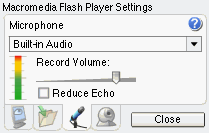
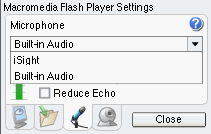
Above are two screenshots of the microphone panel. The left one show that "Built-in Audio" is the currently selected microphone. This usually refers to the microphone that is built-in to your laptop or desktop; many of you will want to use this as your audio source. If this is not what you want to use you can click the pull-down menu to reveal a list of all possible audio sources, as shown in the screenshot on the right. Many webcams come with a microphone built into them, and often their sound will be better than the ones that come with your computer. You can select that microphone or any other third-party microphone from this menu.
Once you've chosen your microphone, you should see the level meter start to move up and down. Try speaking in a normal voice into the microphone, as if you were speaking during a seminar. You want the audio to be in the upper green or yellow range. If it occasionally hits red, that's fine. If it is always red, turn the "Record Volume" slider down. If it never gets out of green, turn the "Record Volume" slider up. Getting a good level from your microphone is a very important part of being understandable to other Disseminate users.
Finally, there is a button labeled "Reduce Echo". Pressing this button will reduce the chance of feedback ocurring. Disseminate has it's own mechanism for preventing feedback built into the software, so checking this button should be unnecessary. The exception to this is if you are logged into a conference and are physically located in the same room as another participant. In this situation it is recommended that both users use headphones; if this is not possible make sure that the "Reduce Echo" option is checked.
Test the microphone
Go ahead and try testing your microphone using the Flash testing area to the right.
- Make sure that your microphone is conneceted and that you've installed any needed drivers.
- Right-click on the testing area if you are using Windows, ctrl+click if you are on a Macintosh. From the menu that pops up, choose Setttings. This will bring up a screen similar to the ones at the top of this page.
- Press the microphone button to bring up the microphone settings. The microphone button is the third one to the right.
- Click on the pulldown menu and select your microphone. If you are using a microphone that is built-in to your computer or laptop, choose the "Built-In Audio" option. Release the pulldown menu.
- Once you have selected your microphone, try speaking into it. You should see the audio levels meter jump up and down in response to your voice.
- While speaking into the microphone move the Record Volume slider until the the levels average as being yellow or on the high side of green.
- Press the Reduce Echo button if you are in the same room as another Disseminate user if either one of you is not using headphones.
- You are now ready to use your microphone with Disseminate.
To learn more visit Macromedia's Microphone settings page.
Next > Camera settings