Logging in to Disseminate
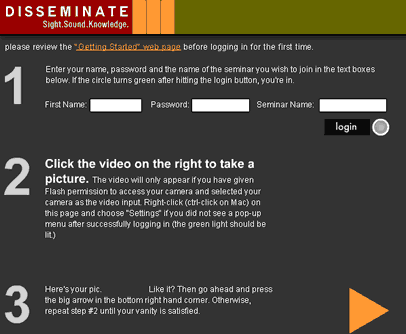
To the left is a miniaturized screenshot of the Disseminate login screen. Assuming you've already created a login account, there are three steps to the login process.
The first step is to fill in your name, your password and the name of the seminar you wish to join in the text boxes at the top of the screen. Then press the login button. If you've filled in everything correctly, the circle next to the login button will turn green. If something is incorrect Disseminate will let you know what the problem is and you can try again.
As soon as you log in, the Flash Settings dialog box should pop-up on the screen, and ask for permission to use your camera and microphone. You can review how to use the privacy, camera and microphone settings in this menu using the corresponding links at the top of this page. Once you have granted Flash permission to use your camera and microphone and have selected them hit the close button.
You should now see the video feed from you camera. Click on the video to take a snapshot which will represent you in the Disseminate interface. You will see the snapshot you've taken towards the bottom of the screen. If you don't like the snapshot you take, you are welcome to keep taking new ones until you get one that you like. Once you have the perfect image, hit the large arrow in the bottom right hand corner to enter the Disseminate interface.